How to use Conversation
Activities
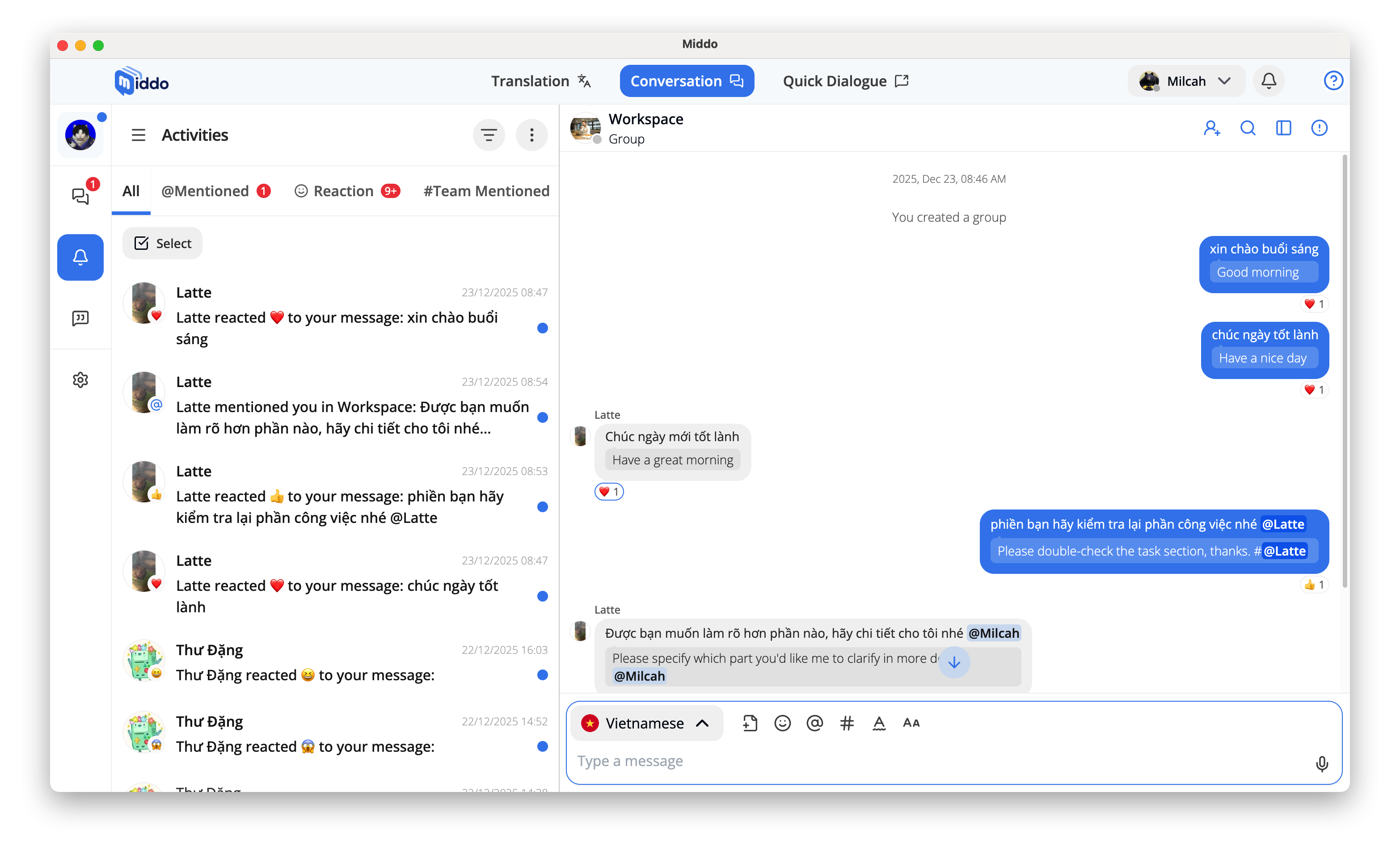
Activities helps you keep track of important interactions across your workspace in one place.
Instead of checking multiple conversations, you can view all relevant updates in a single activity feed.
Notifications in Activities
You will receive activity notifications when an interaction is related to you, including:
- When you are mentioned directly in a message
- When someone reacts to your message
- When your team is mentioned
Activities are highlighted to help you quickly identify new updates, showing:
- Message content
- Timestamp
- Quick access to the related conversation
Using Activity Filters
You can switch between tabs to quickly find the information you need:
- All: View all activities across your workspace
- Mentioned: See messages that require your direct attention
- Reaction: Review reactions to your messages
- Team Mentioned: Follow updates related to your teams
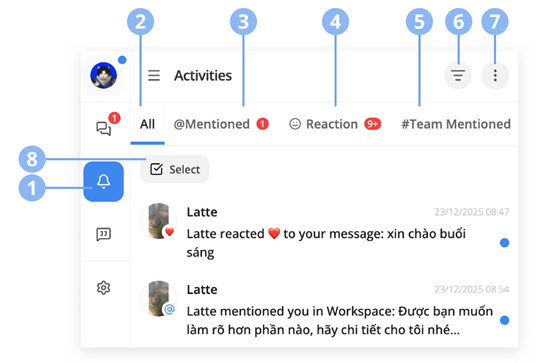
1. Accessing Activities
Click the Activities (bell) icon in the sidebar to open the Activities panel.
2. All Tab
Displays all activity types in one list, including:
- Mentions
- Reactions
- Team mentions
3. Mentioned Tab
Shows activities where you are directly mentioned in a message.
Click a notification to be redirected to the related chat.
4. Reaction Tab
Shows reactions from other users to your messages.
Click a notification to open the chat where the reaction occurred.
5. Team Mentioned Tab
Shows mentions related to teams you belong to.
Click a notification to be redirected to the mentioned conversation.
6. Read & Unread Activities
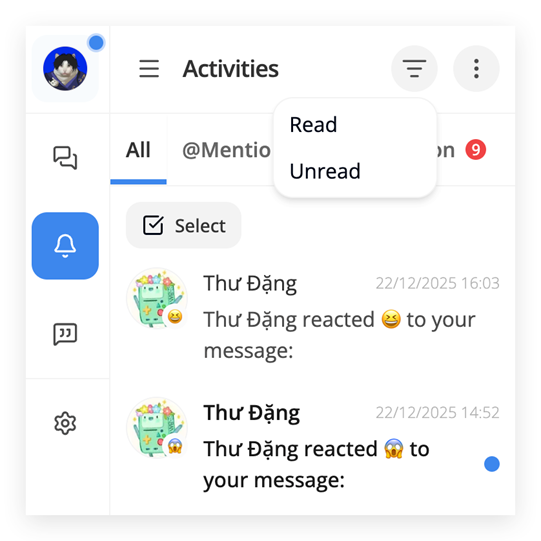
Filter activities by read status to focus on new or pending updates.
Unread
- Activities you haven’t viewed yet
- Displayed in bold text with an indicator
- Helps you quickly spot new or missed updates
Read
- Activities you have already viewed
- Displayed in a lighter text style
- Select Read to revisit previous activities
7. Activities Settings
Use the toggle buttons to enable or disable:
- E.S.L Translation Tool
- E.S.L Message
8. Selection Mode
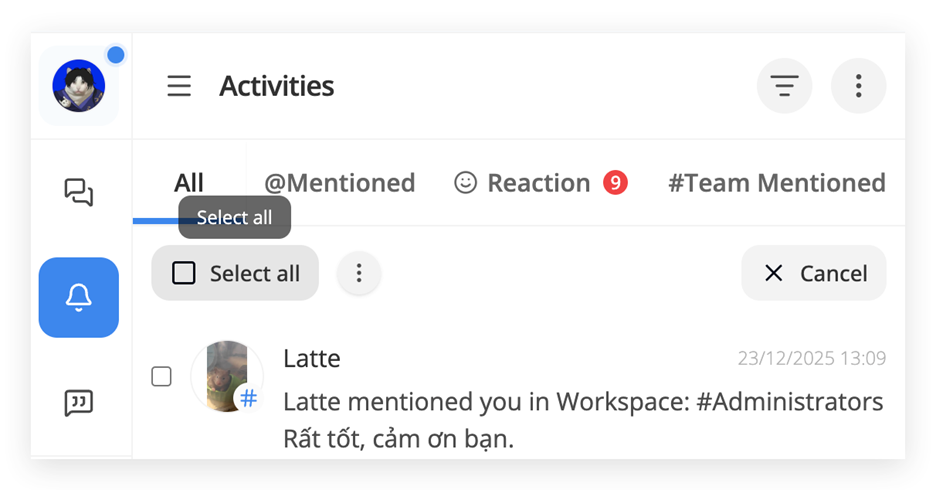
Select / Deselect All
- Click Select to choose activities by checking their boxes
- Click Select all to select all activities at once
- When all activities are selected, the button changes to Deselect All
- Click Cancel to exit selection mode
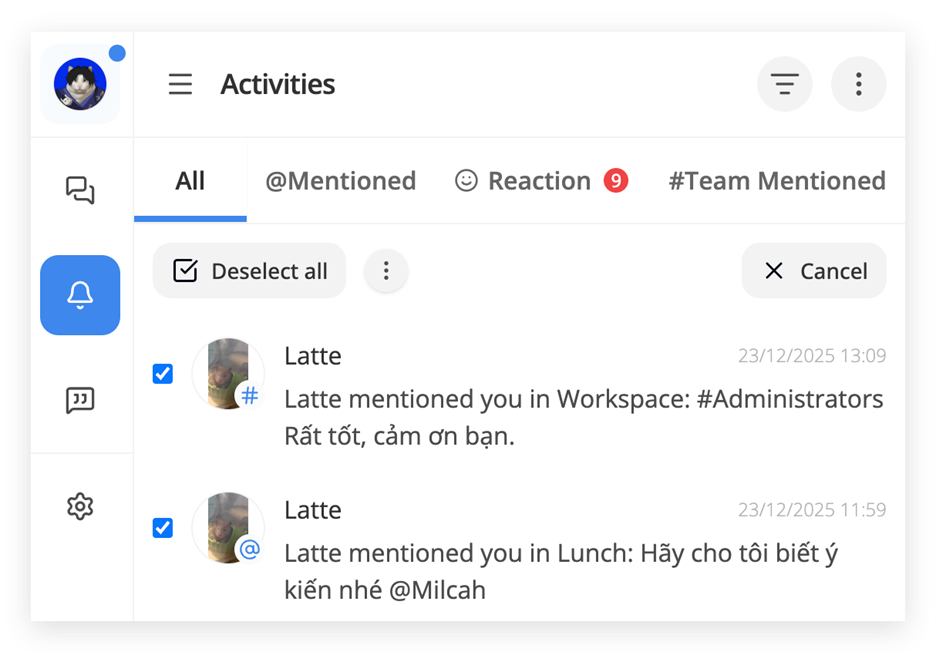
More Actions
After selecting activities, click the More options (⋯) button to perform bulk actions:
- Mark as read: Mark selected activities as read
- Remove: Remove selected activities from the list